An XML handoff transfers editing instructions, not a finished movie. Cuts and media references are only the start. Titles, transitions, effects, fonts and application-specific templates need a visual check after import.
The five-step handoff
Prepare a copy of the Final Cut Pro project
Duplicate the project before handoff. Keep the original untouched so there is always a reference timeline for picture and sound.
Export FCPXML
In Final Cut Pro, select the project and choose File → Export XML. Save the FCPXML beside a note that identifies the project version you are handing over.
Convert it to FCP7 XML/XMEML
Adobe Premiere Pro imports the older FCP7 XML interchange format, not Final Cut Pro's FCPXML format. A converter is required between the two applications.
Import the XML and reconnect the media
Import the converted XML into Premiere Pro. XML stores paths and edit decisions; it does not contain the source files. If the files moved or the handoff uses another Mac, use Link Media to point Premiere Pro to them.
Compare against the Final Cut Pro original
Check the start, every title and transition, any retiming or effects, and the end. Export a short reference movie from Final Cut Pro when the receiving editor cannot open the original library.
Adobe describes the same basic route in its Final Cut Pro to Premiere Pro migration guide and warns that some elements do not translate.
What to expect after import
What Conform carries when supported
- Cuts and clip timing
- References to source media
- Timeline stacking order
- Audio levels
- Supported title text and line breaks
What Conform flags for visual review
- Motion templates and tracking
- Title size and position
- Letter spacing and leading
- Transitions other than Cross Dissolve
- Effects and retiming
Do not judge the handoff by whether the XML opens. Judge it by whether the converted timeline matches the reference closely enough to continue editing, and whether the remaining differences are easy to locate.
Where Conform fits
Conform reads Final Cut Pro FCPXML/FCPXMLD and writes Premiere-compatible FCP7 XMEML. It rebuilds supported titles as editable Premiere Pro text, including supported text, line breaks, alignment, colour, size and position.
Before export, it identifies elements that may look or behave differently. After conversion, it saves the affected item names and timecodes in a report, Premiere markers and a bilingual AI editing request. The point is not to pretend the two applications are identical; it is to keep the visible result close where possible and make the remaining checks findable.
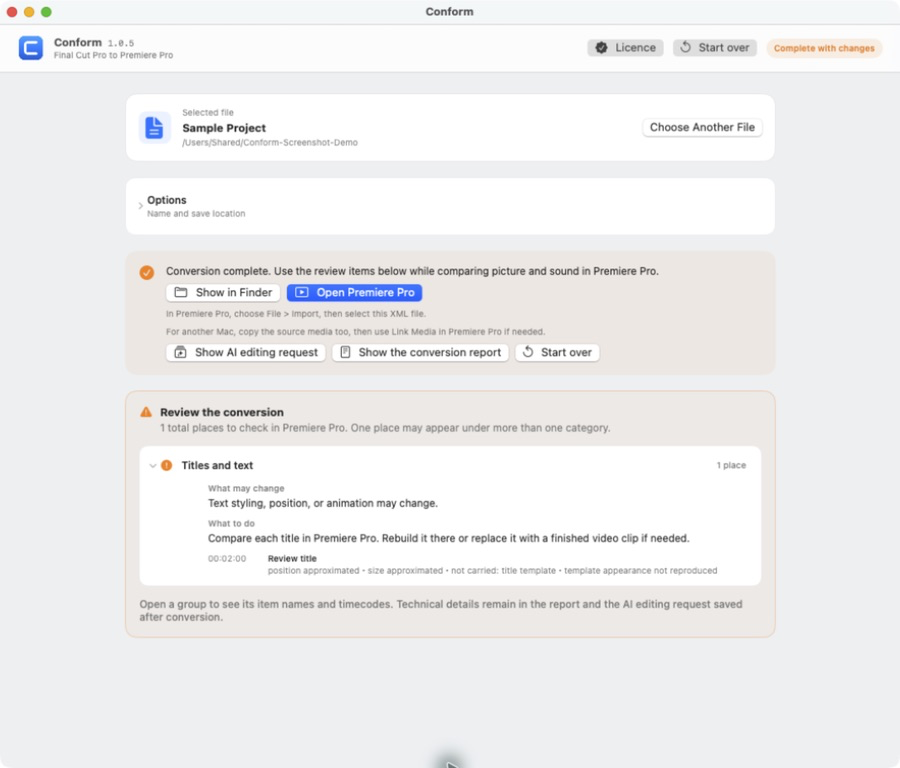
A same-source comparison
The three panels below use the same Final Cut Pro source timeline: the original, the Conform result in Premiere Pro, and another conversion tool. Pause on any frame to compare title scale and placement.
Before delivery
- Open the converted sequence in Premiere Pro and confirm frame rate and sequence size.
- Resolve every offline-media warning.
- Compare the first and last frames, titles, transitions, speed changes and audio.
- Keep the original FCPXML, converted XML and reference movie together.
- Write down anything intentionally rebuilt or replaced in Premiere Pro.